
Only logged in customers who have purchased this product may leave a review.
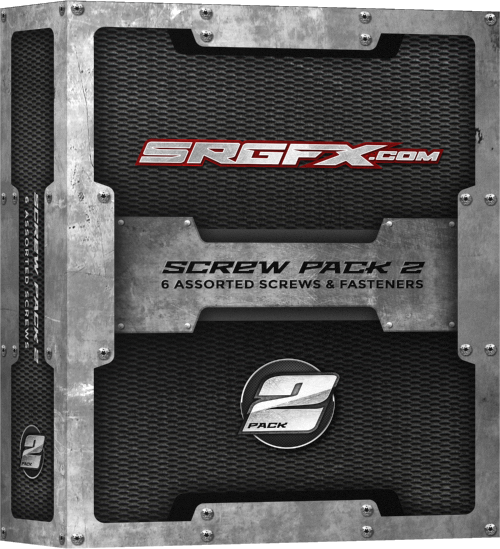
Screw Pack 2
$15.99

Detail wraps and design projects with ease
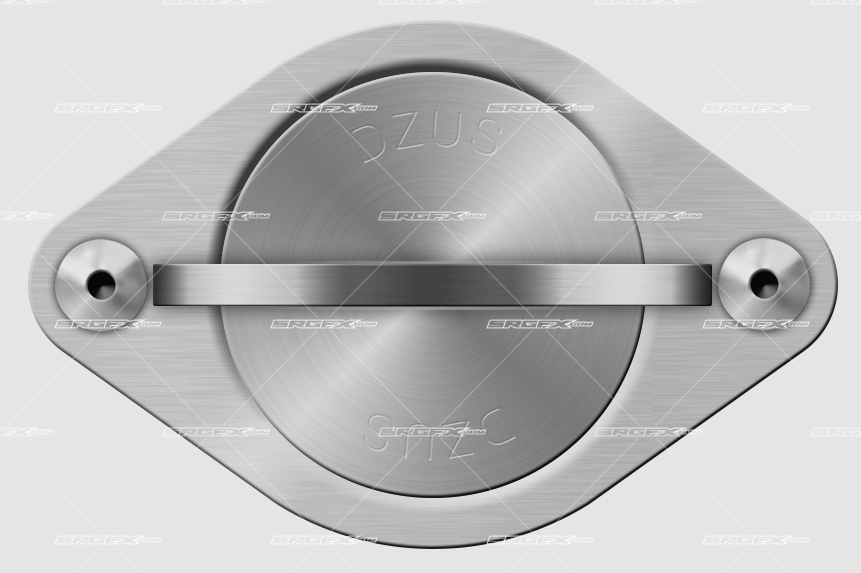
SRGFX Screw Pack 2 includes screws, rivets and fasteners that will add fine details to design projects. The fasteners can be used in wraps, t-shirts and other promotional materials.
Created by: Adam Zuidema

Guaranteed Satisfaction
if you run into problems with this file, I will sort it out. Hit me up! »-Ray ⚡Founder - Vector Aficianado - Rad Maker⚡
Description
Detail wraps and design projects with ease
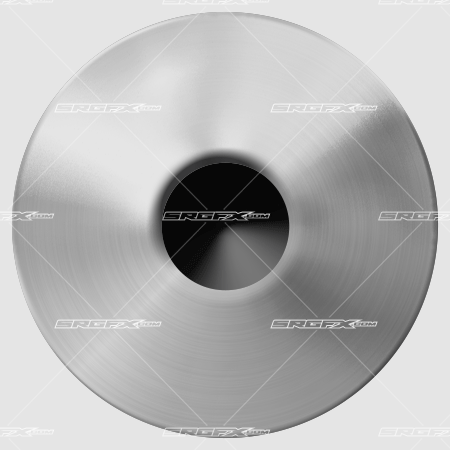
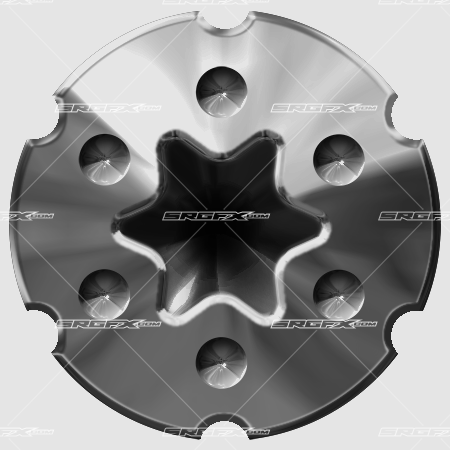
SRGFX Screw Pack 2 includes screws, rivets and fasteners that will add fine details to design projects. The fasteners can be used in wraps, t-shirts and other promotional materials. This pack will add life like elements to your designs that look fastened to the artwork. The fasteners also look great on remote control car wraps and will help simulate a life like appearance. Use them to create number and graphic borders as well. View the preview images for examples on how to use the screw pack.
This pack contains 6 assorted screws, rivets and fasteners:
- Rivet Head
- Torx Head
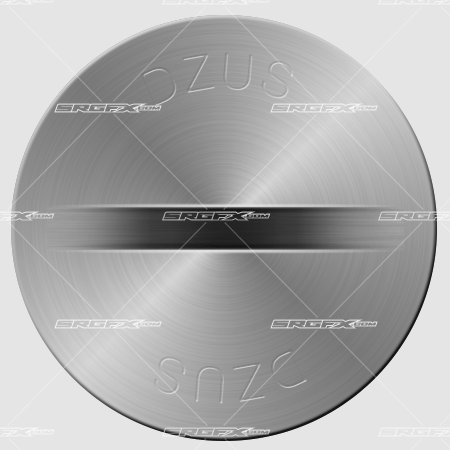
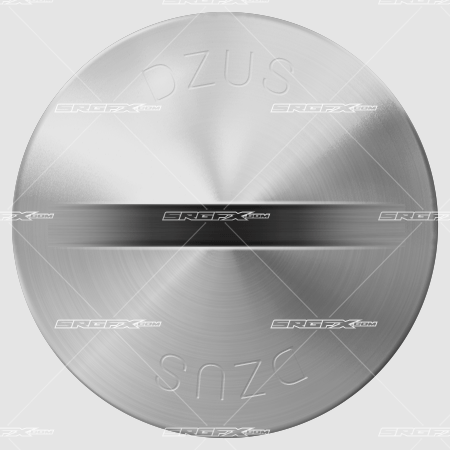
- DZUS Button
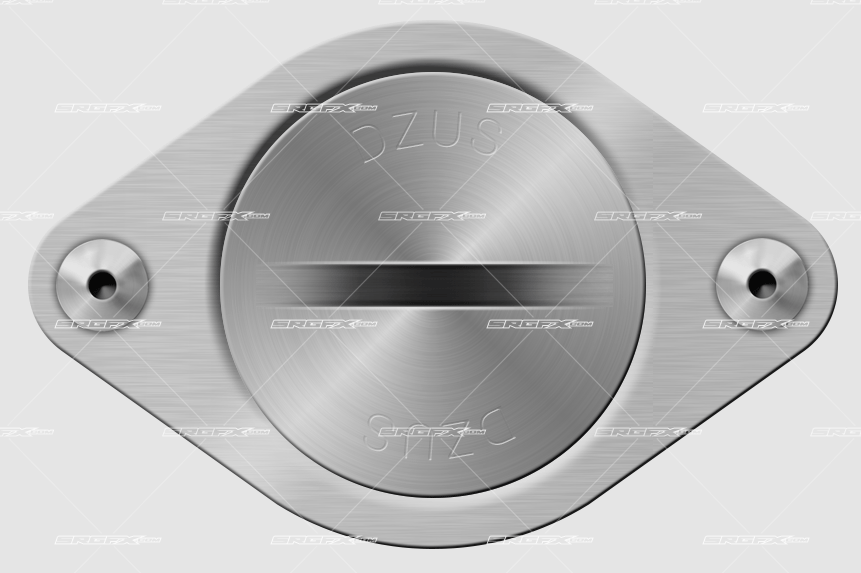
- DZUS Contained Flat
- DZUS Contained Wing
- Easy to re-size
- Comes with a vector mask for vector based programs
- 6.25″ x 6.25″
- 150dpi
How to use the rivets and fasteners
The SRGFX Screw pack contains hi resolution bitmap (raster screws) with vector clippings masks included. The files can be used in but are not limited to Adobe Illustrator, Adobe Photoshop, Corel Draw and Flexi Sign. The provided vector clipping paths must be applied within the design software of you choice. The Screw pack 2 is intended for print projects.
Applying a clipping mask
For the clean and rounded corners of each fastener to appear correctly in your design software you will need to apply a clipping mask before applying the elements to your design. A vector file is provided with the correct shape to use as the clipping path. Align each vector shape over the corresponding fastener and apply the path. The directions for applying a clipping mask in the most popular design software is found below.
Adobe Illustrator
Top Menu > Object > Clipping Mask > Make
Corel Draw
Top Menu > Object > Power Clip > Place inside frame
Flexi Sign
Top Menu > Arrange > Mask
Inkscape
Top Menu > Object > Mask > Set
Reviews
There are no reviews yet.